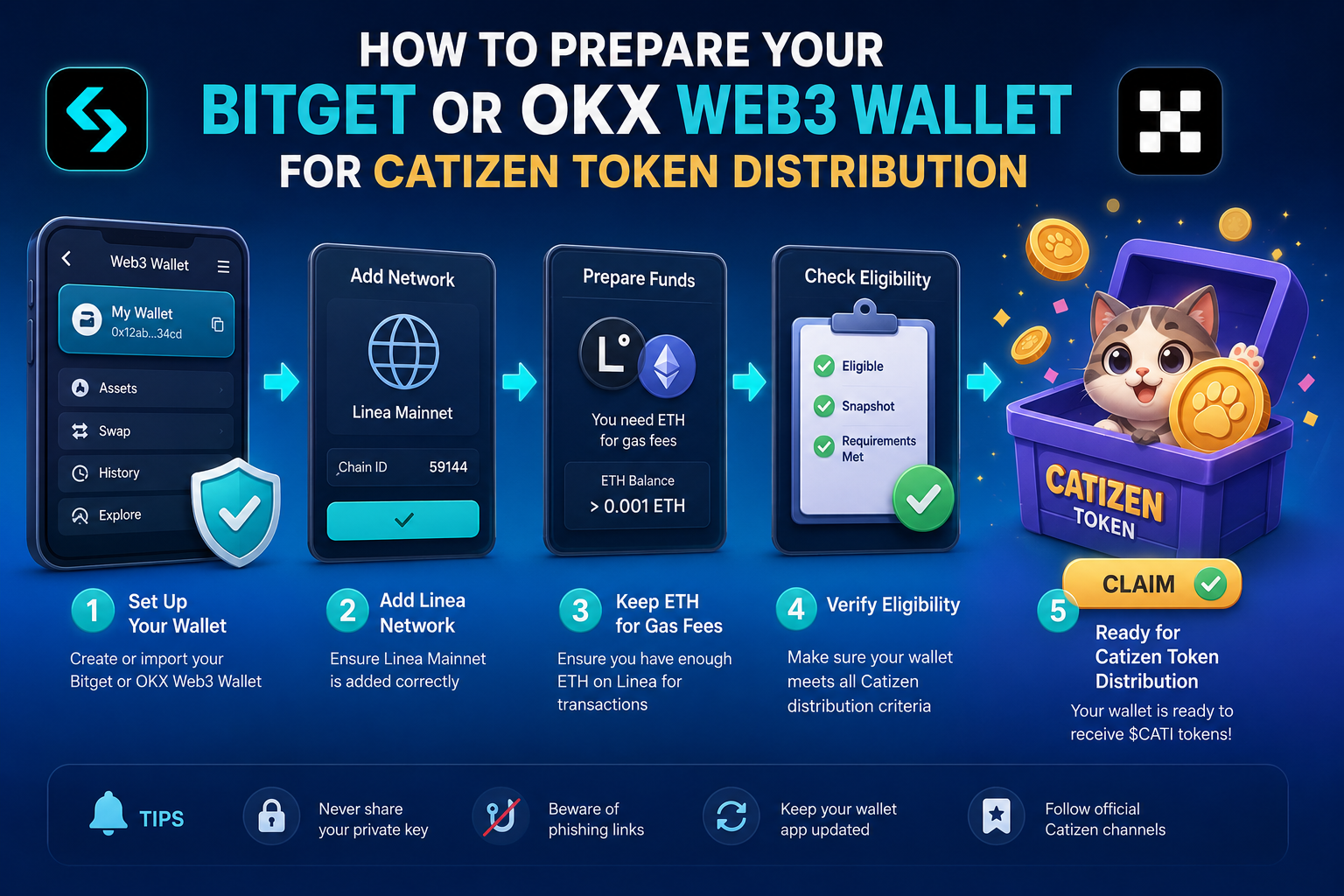
If you're expecting to receive Catizen tokens, making sure your Web3 wallet is properly set up ahead of time can help you avoid unnecessary problems during the distribution period. Whether you're using the Bitget Wallet or the OKX Web3 Wallet, a few simple checks can ensure your wallet is ready to receive and manage any tokens you may become eligible for.
In this guide, you'll learn how to prepare your wallet, verify the correct network settings, secure your account, and confirm that everything is in place before the Catizen token distribution begins. Taking a few minutes to prepare now can save you time and frustration later.
What is Catizen and how does its token distribution work?
Catizen is a popular Telegram-based game where players raise virtual cats, earning rewards as they play. Its token distribution typically involves an airdrop or a claim process for players who participated in specific in-game activities or met certain criteria.
The project often uses The Open Network (TON) blockchain for its token, meaning you'll need a wallet compatible with TON to receive any distributed tokens. Players usually need to connect their wallet to the Catizen platform to claim their rewards once the distribution event goes live.
Why is it important to prepare your crypto wallet for token distributions?
Preparing your crypto wallet is crucial for receiving new tokens safely and successfully. If your wallet is not set up correctly, you might miss out on a token distribution or even lose your assets.
Think of it like getting ready for a package delivery. You need to make sure your address is correct and that you're home to receive it. For crypto, this means having the right wallet, on the right network, and understanding the claim process.
How do I set up a Bitget Web3 Wallet for Catizen?
Setting up a Bitget Web3 Wallet is a straightforward process that allows you to manage your crypto assets and interact with decentralized applications. This wallet will be ready to receive Catizen tokens once properly configured.
Follow these steps to get your Bitget Web3 Wallet ready:
- Download the Bitget Wallet App: First, download the official Bitget Wallet application from your device's app store or their official website. Make sure you are downloading the correct app to avoid scams.
- Create a New Wallet: Open the app and choose the option to 'Create Wallet.' You will be asked to set a strong password. Remember this password, as it's essential for accessing your wallet locally.
- Back Up Your Seed Phrase: The app will then show you a 12 or 24-word seed phrase. This phrase is the master key to your funds. Write it down on paper and store it in a safe, private place. Do not share it with anyone or store it digitally.
- Verify Your Seed Phrase: You will be prompted to re-enter a few words from your seed phrase to confirm you've written it down correctly. This step is vital to ensure you can recover your wallet if needed.
- Add The Open Network (TON): Once your wallet is created, navigate to the 'Add Network' or 'Manage Networks' section. Search for 'TON' or 'The Open Network' and add it to your wallet. This ensures your wallet can interact with the Catizen token.
How do I set up an OKX Web3 Wallet for Catizen?
The OKX Web3 Wallet is another excellent choice for managing your cryptocurrencies and participating in token distributions like Catizen's. It offers a secure and user-friendly interface for interacting with various blockchains.
Here are the steps to set up your OKX Web3 Wallet:
- Install the OKX App or Browser Extension: Download the OKX app from your mobile app store or install the OKX Wallet browser extension for Chrome/Brave. Ensure it's the official version.
- Create a Wallet: Open the wallet and select 'Create Wallet.' You'll need to set a secure password for local access. This password protects your wallet on your device.
- Secure Your Seed Phrase: A seed phrase (recovery phrase) will be generated. This series of words is your ultimate backup. Write it down carefully on paper and keep it offline in a secure location. Losing this means losing access to your funds.
- Confirm Your Seed Phrase: The wallet will ask you to confirm certain words from your seed phrase. Complete this step accurately to ensure your backup is valid.
- Enable The Open Network (TON): After creation, go to the network management section within the OKX Wallet. Locate and enable 'TON' or 'The Open Network' to ensure compatibility with Catizen tokens.
What are the differences between Bitget and OKX Web3 Wallets for airdrops?
Both Bitget and OKX offer robust Web3 wallets suitable for receiving airdrops, but they have distinct features that might influence your choice. Understanding these differences can help you pick the one that best fits your needs.
Here's a comparison of key operational criteria:FeatureBitget Web3 WalletOKX Web3 Wallet
1. Integration: Integrated within the Bitget exchange app, also standalone app.Integrated within the OKX exchange app, also standalone app and browser extension.
2. Supported ChainsSupports over 90 blockchains including EVM, TON, Solana, etc.Supports over 70 blockchains including EVM, TON, Solana, etc.
3. DApp BrowserBuilt-in DApp browser for direct interaction with decentralized applications.Built-in DApp browser for exploring and connecting to various DApps.
4. Security FeaturesMulti-layer security, MPC wallet option, hardware wallet integration.MPC wallet, seed phrase backup, biometric authentication.
How do I add the Catizen token network to my wallet?
For most token distributions, especially on networks like TON, you usually don't need to manually add the token network itself. Instead, you need to ensure your wallet supports the specific blockchain network the token is issued on, and then add the token contract address.
Here's how to ensure your wallet is ready for TON-based Catizen tokens:
- Ensure TON Network is Enabled: As mentioned in the setup steps, confirm that 'The Open Network (TON)' is enabled in your Bitget or OKX Web3 Wallet. If it's not, go to your wallet's network settings and add or activate it.
- Find the Official Catizen Token Contract Address: Always get the official contract address from Catizen's official announcements, their website, or reputable sources like TONScan. Be extremely cautious of fake addresses.
- Add Custom Token: In your wallet, look for an option like 'Add Custom Token' or 'Manage Tokens.' Paste the official Catizen token contract address into the designated field. The token symbol (e.g., CATI) and decimals should auto-populate.
- Confirm and Save: Review the details to ensure they match the official information. Confirm the addition, and the Catizen token should now appear in your wallet's asset list.
What are common mistakes to avoid during token distribution?
Participating in token distributions can be exciting, but it's also a time when scams and errors are common. Avoiding these pitfalls will protect your assets and ensure you receive your tokens successfully.
Be mindful of these common mistakes:
- Using Unofficial Links: Always verify the source of any link you click, especially for claiming tokens. Scammers often create fake websites that look identical to official ones.
- Sharing Your Seed Phrase: Your seed phrase is private. No legitimate project or support team will ever ask for it. Anyone who does is trying to steal your funds.
- Ignoring Network Compatibility: Ensure your wallet supports the specific blockchain network (e.g., TON for Catizen) where the tokens are being distributed. Tokens sent to an incompatible network might be lost.
- Missing Claim Deadlines: Many airdrops and distributions have a limited claim window. Pay close attention to official announcements for deadlines and claim instructions.
- Falling for Phishing Scams: Be wary of emails, DMs, or social media posts promising extra tokens or asking for personal information. Always cross-reference information with official channels.
How can I verify my Catizen token distribution status?
After a token distribution event, it's natural to want to confirm if you've received your tokens. Verifying your status involves checking your wallet and official project channels.
First, open your Bitget or OKX Web3 Wallet and check your asset list for the Catizen token. If you added the custom token address correctly, the balance should update. Second, visit the official Catizen website or their social media channels for announcements regarding distribution completion or a claim portal. You can also use a blockchain explorer like TONScan to search your wallet address and see if the tokens have been transferred.
Conclusion
Preparing your wallet correctly is the most important step for any token distribution. By following these guidelines for your Bitget or OKX Web3 Wallet, you're setting yourself up for a smooth experience when Catizen tokens are distributed. Always prioritize security and stay informed through official communication channels. For more information on upcoming distributions and how to participate, explore the latest airdrop opportunities on CoinDecimal.